
Local Payment - Unified Checkout
Local Payment Unified Checkout Installation Guide
Note
If local payment methods are not activated, this step can be skipped.
Step 1. Search APP
Click this link (https://apps.shopify.com/local-payment-2) to install the APP.
Attention
Please install through the designated link, do not search directly in Shopify App Store.
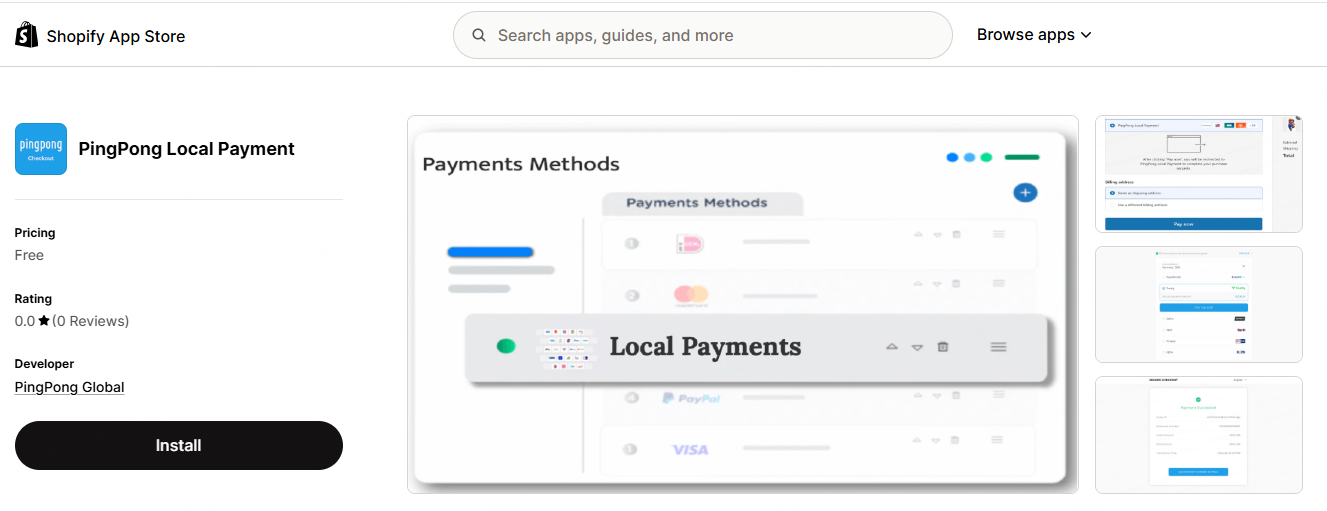
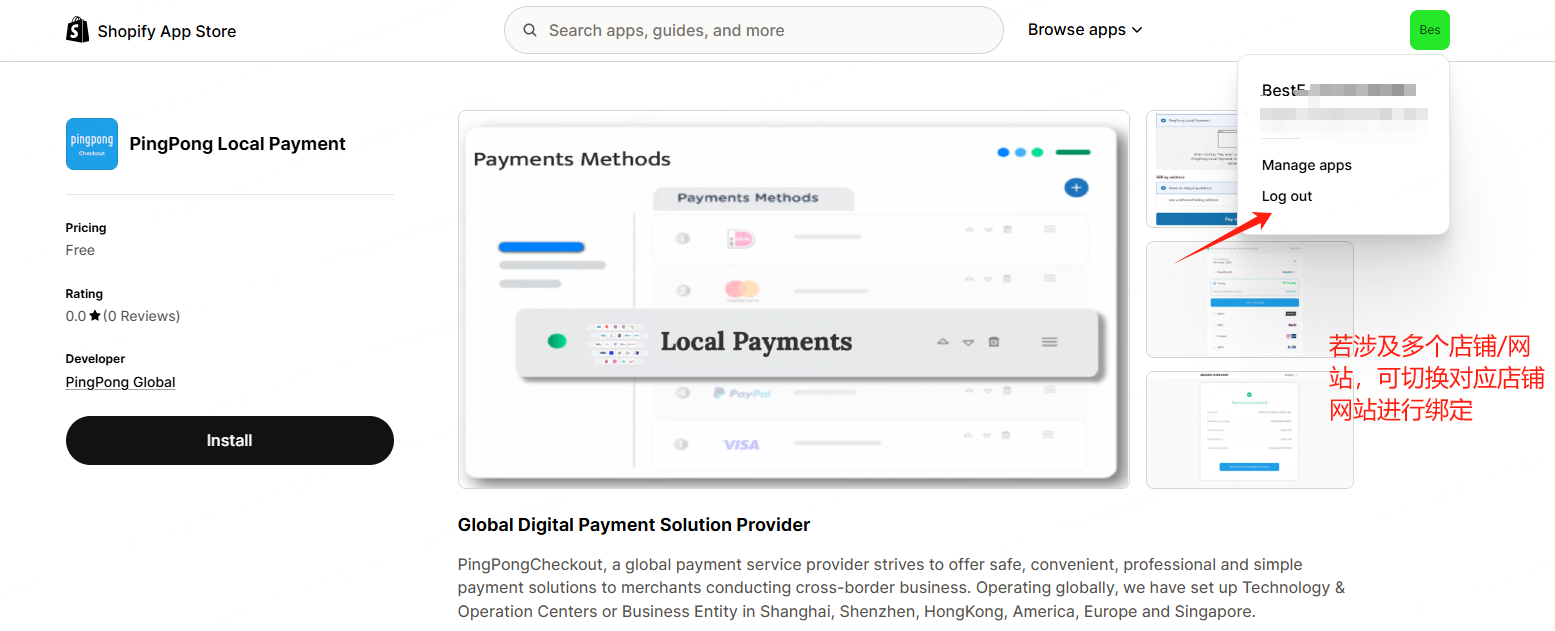
Step 2. Install APP
Click 【Install】-->【Link SHOPIFY and PingPong Checkout】-->Select【Registration Entity】-->【Confirm】
Attention
Please select the entity region according to the company entity registered in PingPong Checkout, otherwise it will affect binding. Other entities refer to entities other than US entity, such as HK/SG, etc.
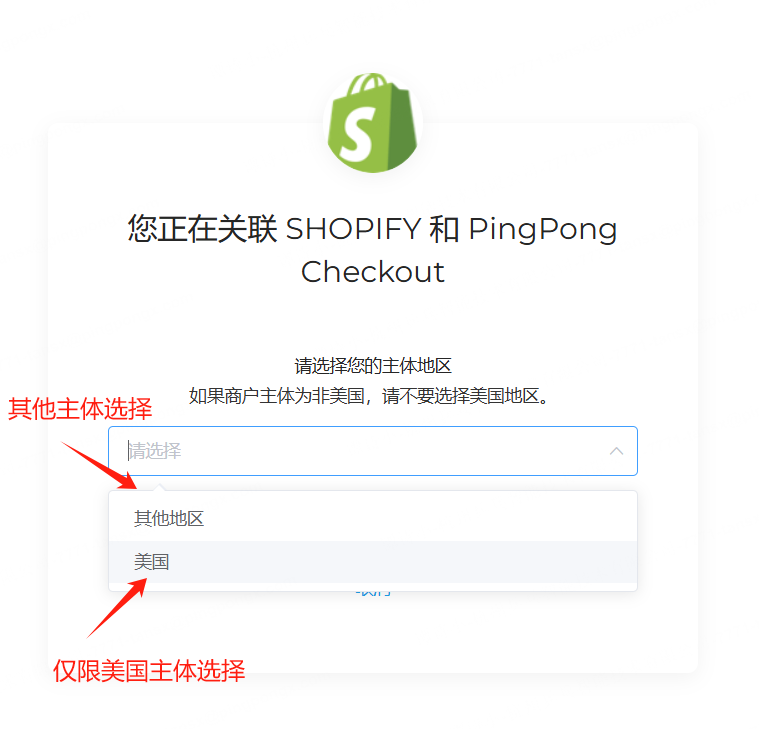
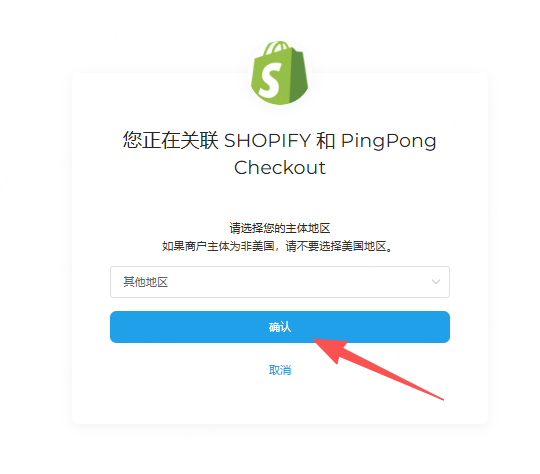
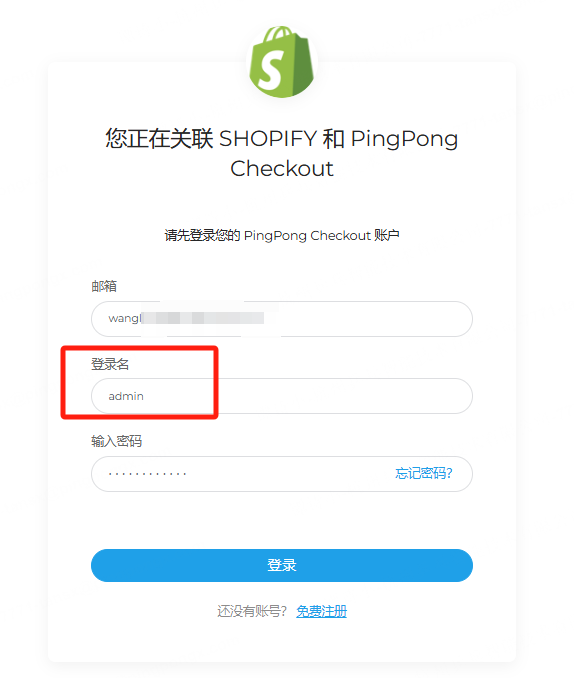
Please log in using your administrator email and password during registration.
Default login name: admin
Step 3. Select Binding Website
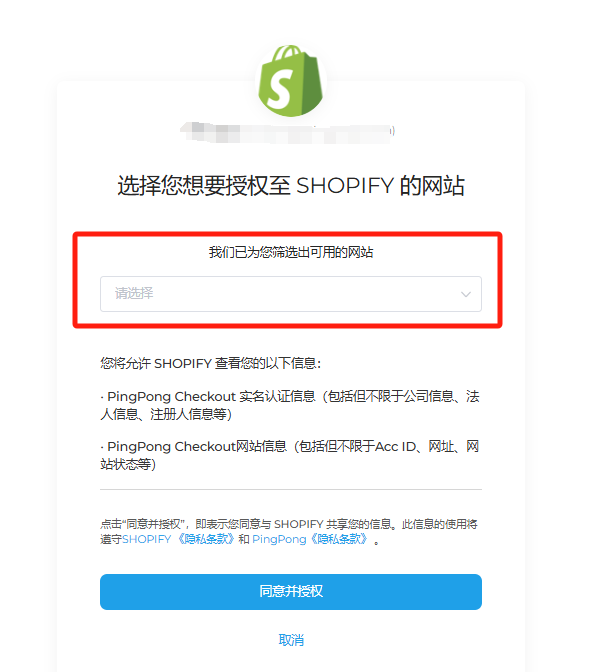
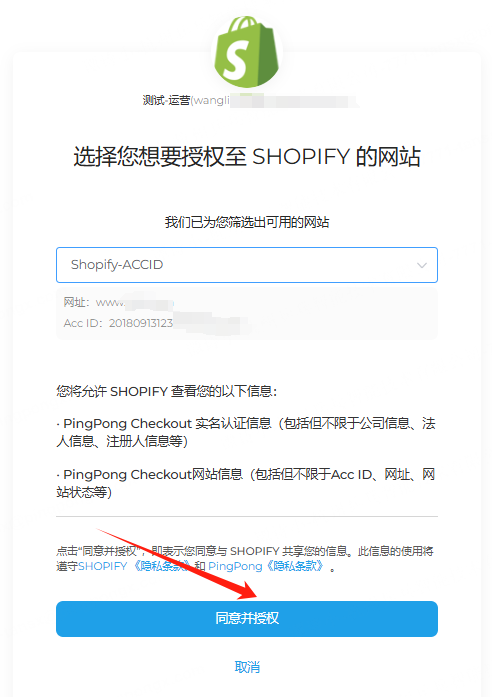
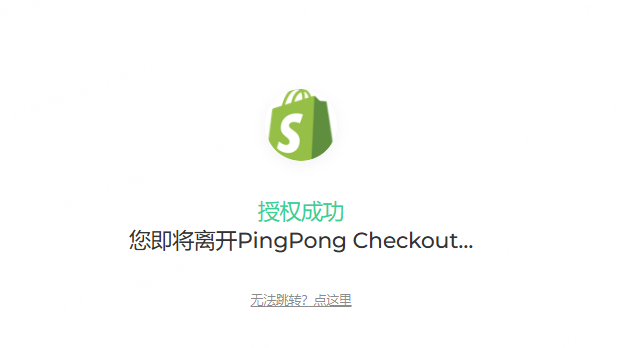
Select the website you want to bind-->click 【Agree and Authorize】, it will automatically redirect to Shopify page.
Attention
- Currently the system does not support batch binding of multiple websites, need to operate one by one
- This page only displays websites that have been approved
Step 4. Activate Payment Methods
After completing binding and redirecting back to Shopify admin backend, 【Payments】 will show "PingPong Local Payment" APP, check the required payment methods, and click 【Activate】-->【Save】.
Attention
Do not check Test mode, otherwise it will submit to test environment.
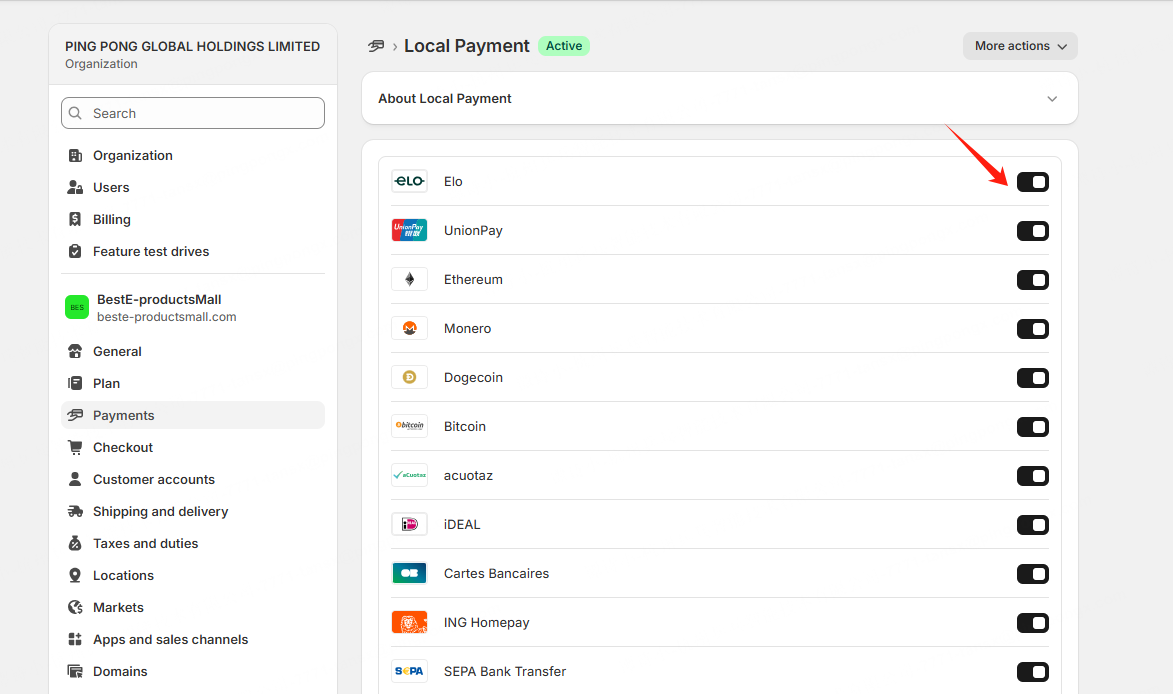
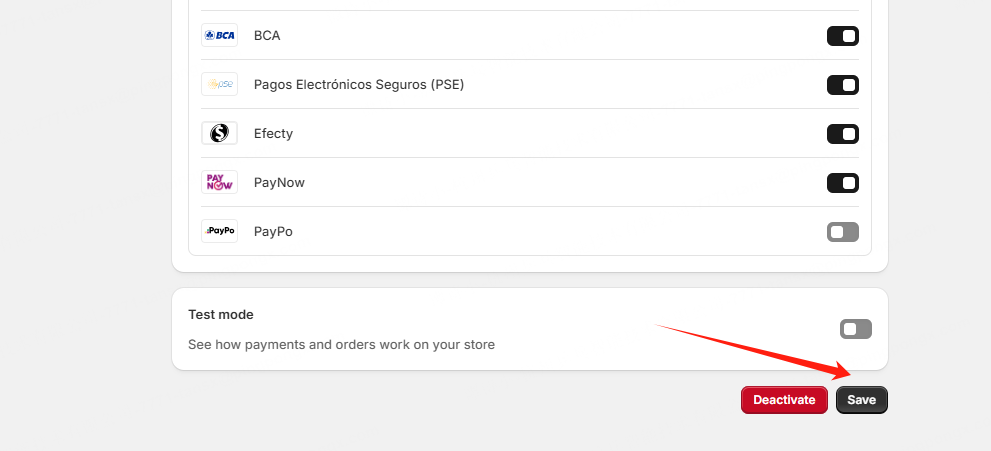
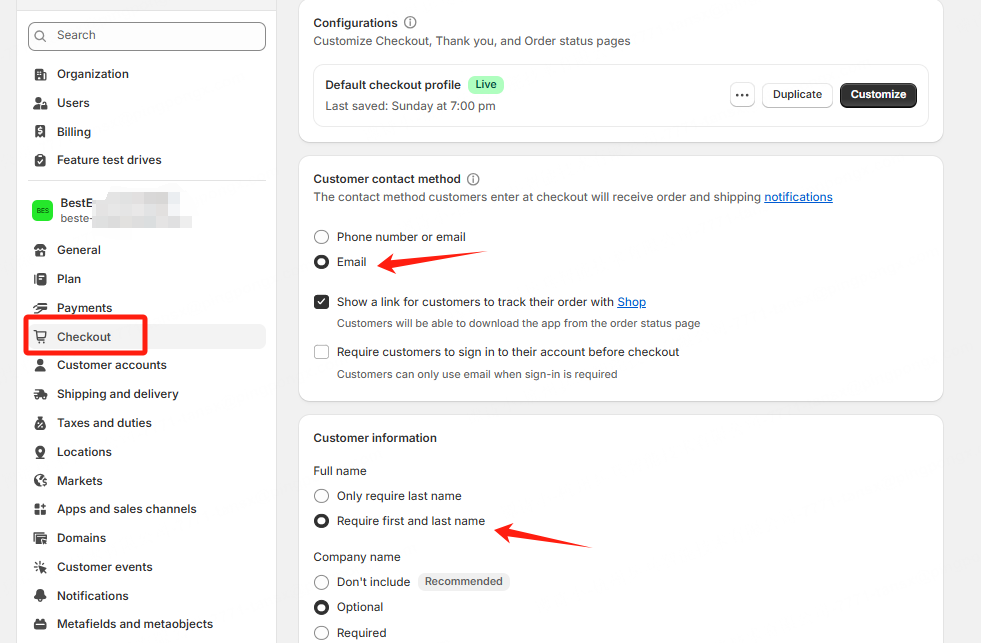
Step 5. Set Required Fields
Set Email and name as required fields, otherwise it will affect transaction success, need to set according to the following screenshot.
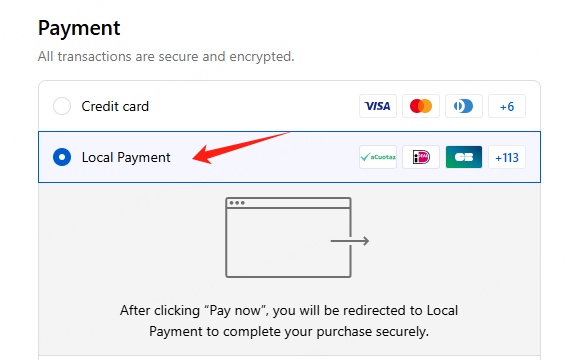
Step 6. Installation Success
After successful installation, your merchant backend and checkout will display corresponding payment icons/entry.
Step 7. Test Verification
After APP installation is successful, please set up a product link with an amount of 1 USD for the operations team to test, or merchants can test a transaction themselves. Once checkout redirection and display are working properly, it can be officially launched for use.