---
title: Embedded SDK
permalink: /en/notes/integrate/sdk-v4/
createTime: '2025/03/07 16:01:51'
description: >-
Use Embedded SDK as the unified entry for Web / WAP, iOS, and Android checkout integrations, with platform switching and direct access to the complete guide for each platform.
outline: [2, 4]
---
PingPong Checkout Embedded SDK is intended for teams that want shoppers to complete payment without leaving the merchant site or app. Use this page as the unified entry for Web / WAP embedded checkout and native app integrations.
## Platform Coverage
| Platform | Entry | Description |
|---|---|---|
| Web / WAP | Current page | Integrate the JavaScript-based embedded checkout on your website or mobile web page |
| iOS App | [iOS Integration Guide](/en/notes/integrate/native-sdk-ios/) | Build the native bottom-sheet checkout experience for iOS |
| Android App | [Android Integration Guide](/en/notes/integrate/native-sdk-android/) | Build the native bottom-sheet checkout experience for Android |
| App submission and privacy | [App Submission & Compliance](/en/notes/integrate/app-compliance/overview/) | Review App Store / Google Play submission and privacy requirements |
::: tip Recommendation
If your implementation includes app-side checkout, start with this page and switch between the Web / WAP, iOS, and Android tabs based on the platform you are integrating.
:::
## Platform Selection
## Web/WAP
## Integration Summary
Embedded SDK is a low-code checkout option for merchants that want to keep shoppers on the merchant site while still using PingPong Checkout components. Your server first creates the payment session through [prePay](/en/notes/checkout/api/reserve/), and your frontend then renders the checkout in-page through the JavaScript SDK.
## Payment Experience
### Web Payment
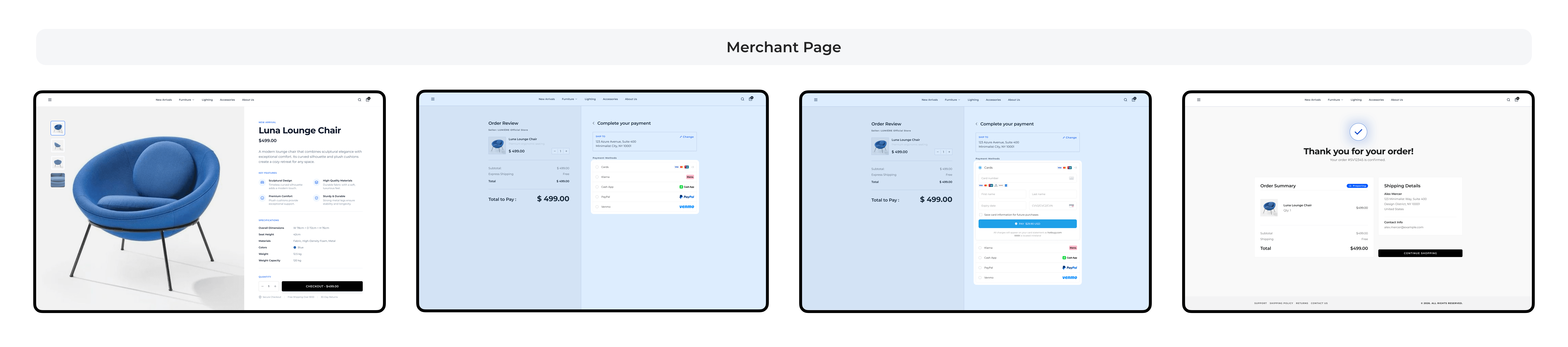
In the Embedded SDK model, you can place the checkout experience directly inside your own website. On desktop and standard web pages, the checkout is rendered within your site so shoppers can complete payment without being redirected to a separate hosted page.
### Mobile Payment
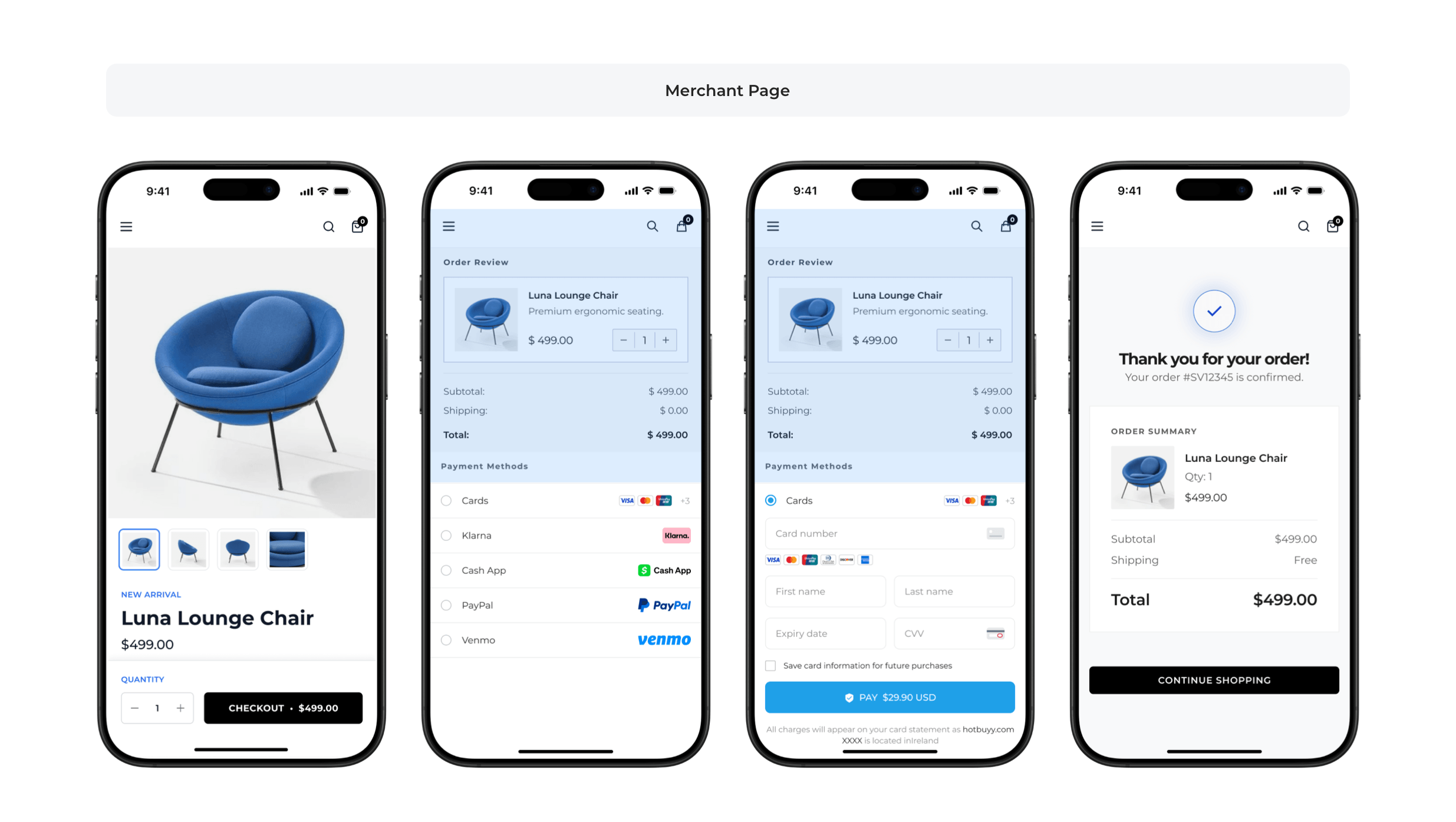
In the Embedded SDK model, you can also embed the checkout experience into your mobile web page or in-app web view. The UI is optimized for smaller screens so shoppers can complete payment in a more seamless mobile flow without leaving your page.
## Payment Flow
```mermaid
%%{init: {
'theme': 'base',
'themeVariables': {
'primaryColor': '#E3F2FD',
'primaryTextColor': '#0D47A1',
'primaryBorderColor': '#1976D2',
'lineColor': '#1565C0',
'secondaryColor': '#BBDEFB',
'tertiaryColor': '#90CAF9',
'background': '#F8FBFF',
'mainBkg': '#E3F2FD',
'secondBkg': '#BBDEFB',
'tertiaryBkg': '#90CAF9',
'actorBkg': '#2196F3',
'actorBorder': '#1976D2',
'actorTextColor': '#FFFFFF',
'actorLineColor': '#1565C0',
'signalColor': '#0D47A1',
'signalTextColor': '#0D47A1',
'noteBkgColor': '#E1F5FE',
'noteTextColor': '#01579B',
'noteBorderColor': '#0288D1',
'loopTextColor': '#0D47A1',
'activationBkgColor': '#B3E5FC',
'activationBorderColor': '#0277BD'
}
}}%%
sequenceDiagram
participant Cardholder as 💳 Cardholder
participant UserTerminal as 📱 User Terminal
participant MerchantPlatform as 🏪 Merchant Platform
participant PingPong as 🔄 PingPongCheckout
participant ISSUER as 🏦 ISSUER
Note over Cardholder,ISSUER: 📋 Order Creation Phase
Cardholder->>UserTerminal: 1. Initiate checkout
activate UserTerminal
UserTerminal->>+MerchantPlatform: 2. Submit order
MerchantPlatform->>+PingPong: 3. Request order interface
PingPong-->>-MerchantPlatform: 4. Return checkout URL (contains JS URL)
MerchantPlatform-->>-UserTerminal: 5. Return checkout info
Note over UserTerminal,PingPong: 🎨 JS-SDK Rendering Phase
UserTerminal->>+PingPong: 6. Render via JS-SDK
PingPong-->>-UserTerminal: 7. Render checkout page
UserTerminal-->>Cardholder: 8. Display checkout page
Note over Cardholder,ISSUER: 💳 Payment Phase
Cardholder->>UserTerminal: 9. Select payment method and fill card info
UserTerminal->>+PingPong: 10. Confirm payment
PingPong->>+ISSUER: 11. Request payment
ISSUER-->>-PingPong: 12. Return result
alt 🔒 3D Process
PingPong-->>UserTerminal: 13. Redirect to 3D verification page
UserTerminal->>Cardholder: 14. 8.1.1 Fill verification code
Cardholder->>UserTerminal: 15. Submit verification
UserTerminal->>+ISSUER: 16. 8.1.2 issuer verifies data
ISSUER-->>-UserTerminal: 17. 8.1.3 Return verification result page
UserTerminal->>UserTerminal: 18. 8.1.4 Fill required info to complete payment Redirect to payResultUrl
Note over MerchantPlatform: Process business logic based on verification result
else ✅ Non-3D Process
PingPong-->>UserTerminal: 19. Return payment result page
UserTerminal->>UserTerminal: 20. 8.2.1 Fill required info to complete payment Redirect to payResultUrl
Note over MerchantPlatform: Process business logic based on verification result
end
deactivate UserTerminal
Note over MerchantPlatform,PingPong: 📡 Asynchronous Notification Phase
PingPong--)MerchantPlatform: 9.1 📡 Asynchronous notification
MerchantPlatform-->>PingPong: 21. 🟢 Response 200
```
### 1. Import Javascript-SDK
Copy the following code to import PingPongCheckout Javascript-SDK via CDN address
::: code-tabs
@tab 🧪 Sandbox Environment
```js
```
@tab 🇪🇺 FRA Production Environment
```js
```
@tab 🇸🇬 SG Production Environment
```js
```
@tab 🇺🇸 US Production Environment
```js
```
:::
### Usage Method
::: note Note
When switching from sandbox environment to production environment, please make sure to check and complete the following operations, otherwise the checkout page will not render properly.
- Switch the CDN address of the imported Javascript-SDK to the URL specified for the production environment
:::
1. When you are debugging the **sandbox environment**, you need to import the PingPongCheckout Javascript-SDK address for the **sandbox environment** (remember to switch to the **production environment** address when deploying to production)
2. Insert the `pp-checkout` tag into the html body
```html:line-numbers title="index.html"
```
3. Pass in the `accessToken` obtained from pre-order, see Order Interface (Hosted Mode) API documentation for `get accessToken`
```html:line-numbers title="index.html"
```
4. You can pass the language to be displayed by the checkout page (default is English, see more languages in Locale) to `pp-checkout` through tag attributes, as follows:
```html:line-numbers title="index.html"
```
Through the above three steps, you have successfully rendered the Javascript-SDK checkout page.
### Global Variables and Hooks
Before using global variables, please ensure that the Javascript-SDK has loaded successfully.
#### customizeConfig Layout and Interface Configuration
Customize the layout and interface elements of the checkout page through `PingPong.Checkout.customizeConfig`:
| Configuration | Type | Default | Description |
|-------|------|-------|------|
| `layout` | `'tab'\|'accordion'` | `'tab'` | Page layout style. Options: `"tab"` (tab style), `"accordion"` (flat style) |
| `displayCheckoutHeader` | `boolean` | `true` | Whether to display the checkout header |
| `originalPay` | `boolean` | `true` | Whether to display the native payment button |
| `toPingPongResult` | `boolean` | `true` | Whether to redirect to PingPong result page after payment. `false` means redirect directly to the merchant configured result page |
| `hideStoredCards` | `boolean` | `false` | Whether to hide COF (Card On File) list |
| `onlyDisplaySavedCard` | `boolean` | `false` | When set to `true`, the checkout only displays the stored card area (hides new card input). For the [checkout repeat purchase (stored card + CVV) scenario](/en/notes/onlinePayment/features/tokenization/cardOnFileCVV/) |
| `disableCardRemoval` | `boolean` | `false` | When set to `true`, prevents users from removing stored card information. For the [checkout repeat purchase (stored card + CVV) scenario](/en/notes/onlinePayment/features/tokenization/cardOnFileCVV/) |
| `displayCardPrompt` | `boolean` | `true` | Whether to display card payment prompt |
| `localizationErrorMsg` | `boolean` | `false` | Whether to translate payment error messages |
| `displayCardsLogo` | `boolean` | `true` | Whether to display card brand logo list |
| `isChallengeIframe` | `boolean` | `false` | Whether to display the 3DS Challenge page in an iframe. When set to `true`, the Challenge flow is rendered in an iframe |
::: warning Note
`toPingPongResult` configuration needs to be set when **creating payment session on server side**. Client-side settings may be overridden by server-side configuration. To disable PingPong result page redirect, please ensure the server is configured correctly.
:::
```js:line-numbers title="src/config/payment.js"
// [!code highlight:1] customizeConfig layout and interface configuration
PingPong.Checkout.customizeConfig = { // [!code focus]
layout: "accordion", // Flat style
displayCheckoutHeader: false, // Hide header
originalPay: false, // Hide native payment button, requires custom button to trigger payment
toPingPongResult: false, // Do not redirect to PingPong result page after payment
hideStoredCards: false, // Show saved card list
displayCardPrompt: true, // Show card payment prompt
localizationErrorMsg: false, // Do not translate error messages
displayCardsLogo: true, // Show card brand logos
isChallengeIframe: true // Render the 3DS Challenge page in an iframe
};
```
#### Custom Payment Button (Optional)
Users can customize buttons and bind pingpong's payment functionality through click events.
```js:line-numbers title="src/config/payment.js"
// [!code highlight:2] Custom payment button configuration
PingPong.Checkout.customizeConfig = {
originalPay: false // [!code focus]
}
// When originalPay is false in initialization parameters, you need to customize the payment button click event
document.querySelector('#pay').onclick = function () { // [!code focus]
PingPong.Checkout.pay.run() // [!code focus]
}
```
#### PingPong.Checkout.beforeCheckoutHook
type:
```js
(() => void) | (() => Promise)
```
`beforeCheckoutHook` is used to set the hook function before initiating payment request.
When you need to execute your own business logic before the user clicks the payment button and initiates the payment request, such as: reporting tracking points, checking inventory, etc., you can set this hook function.
This function can return a `Promise`, and the subsequent payment process will wait for the Promise state to become Fulfilled before continuing execution. If you want to interrupt the payment process when the Promise state is Rejected or the asynchronous result does not meet your business conditions, you can throw an exception, and the SDK will interrupt the payment process after capturing the exception.
```js:line-numbers title="src/hooks/beforeCheckout.js"
// [!code highlight] Pre-payment hook: Check inventory
PingPong.Checkout.beforeCheckoutHook = () => { // [!code focus]
return fetch('/api/requestInventory').then(res => { // [!code focus]
const { inventoryQuantity } = res;
if(inventoryQuantity < MIN_QUANTITY) {
throw new Error('Insufficient inventory, transaction needs to be interrupted') // [!code error]
}
}).catch((error) => {
throw new Error('Interface exception, transaction needs to be interrupted') // [!code error]
})
};
```
#### PingPong.Checkout.checkoutFailedHook
type:
```js
(() => void) | (() => Promise)
```
checkoutFailedHook receives the following parameters:
```js
(code: string, message: string) => void | Promise;
// code: string - Error code
// message: string - Error message
```
`checkoutFailedHook` is used to customize error logic
When user payment fails, PingPong will pop up a dialog box to prompt the user of the failure reason by default. If you want to customize the dialog UI or text, you can set this hook function.
This function can return a Promise. If it returns a Promise, the subsequent process will wait for the Promise state to become Fulfilled before continuing execution
```js:line-numbers title="src/hooks/checkoutFailed.js"
// [!code highlight] Payment failure hook: Custom error prompt
PingPong.Checkout.checkoutFailedHook = (code: string, message: string) => { // [!code focus]
notification.open({ // [!code focus]
message: 'Error title',
description: `${code}: ${message}` // [!code warning]
})
};
```
### Usage Examples
#### Native JavaScript Complete Example
The following example shows how to integrate the SDK in a native JavaScript project, including complete project structure, API calls, and error handling.
::: code-tree title="Native JavaScript Integration Example" height="600px" entry="index.html"
```html:line-numbers title="index.html" :active
PingPong Checkout SDK - Native JS Example
## iOS
## Integration Summary
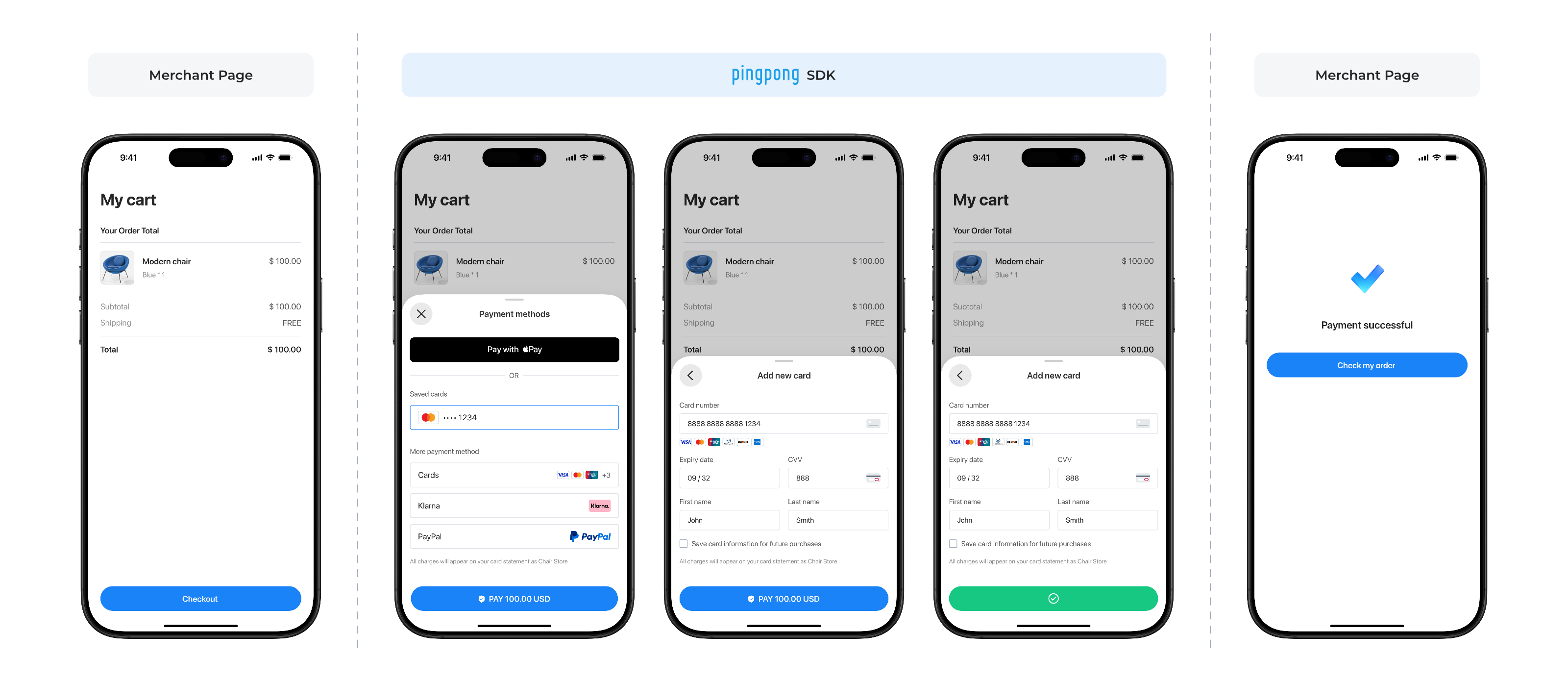
Native SDK for iOS is designed for merchants that want to present PingPong Checkout as a bottom-sheet payment experience inside their own iOS app. Your server creates the payment session through [prePay](/en/notes/checkout/api/reserve/), and the iOS client uses the returned `token` to launch the checkout.
For App Store submission, privacy declarations, and review guidance, refer to [App Submission & Compliance](/en/notes/integrate/app-compliance/overview/).
## Payment Experience
## Environment Requirements
| Item | Requirement |
|------|-------------|
| iOS Version | 15.6+ |
## Import Instructions
### Manual Integration
1. Download the SDK's `.framework` and `PPCashDeskSDKBundle.bundle` resource files
2. Drag both files into your project path
### Dependencies
Ensure the following dependencies are included in your Podfile:
| Dependency | Version | Description |
|------------|---------|-------------|
| AFNetworking | 4.x | Network requests |
| SDWebImage | 5.x | Image loading and caching |
| MJExtension | 3.x | JSON and model conversion |
| MJRefresh | 3.x | Pull-to-refresh and infinite scroll |
| Masonry | 1.x | Auto layout |
| MBProgressHUD | 1.x | Loading indicators |
| Bugly | - | Error monitoring |
## Payment Flow
```mermaid
%%{init: {
'theme': 'base',
'themeVariables': {
'primaryColor': '#E3F2FD',
'primaryTextColor': '#0D47A1',
'primaryBorderColor': '#1976D2',
'lineColor': '#1565C0',
'secondaryColor': '#BBDEFB',
'tertiaryColor': '#90CAF9',
'background': '#F8FBFF',
'mainBkg': '#E3F2FD',
'secondBkg': '#BBDEFB',
'tertiaryBkg': '#90CAF9',
'actorBkg': '#2196F3',
'actorBorder': '#1976D2',
'actorTextColor': '#FFFFFF',
'actorLineColor': '#1565C0',
'signalColor': '#0D47A1',
'signalTextColor': '#0D47A1',
'noteBkgColor': '#E1F5FE',
'noteTextColor': '#01579B',
'noteBorderColor': '#0288D1',
'loopTextColor': '#0D47A1',
'activationBkgColor': '#B3E5FC',
'activationBorderColor': '#0277BD'
}
}}%%
sequenceDiagram
participant App as 💻 Merchant App
participant SDK as 📱 PingPong Native SDK
participant Server as 🏪 Merchant Server
participant PP as 🔄 PingPong Server
participant Bank as 🏦 Card Issuer/Payment Channel
Note over App, Bank: 🚀 iOS Interaction Sequence
App->>+SDK: 1. initWithToken
SDK->>+PP: 2. Validate Token
PP-->>-SDK: 3. Return payment method list
SDK-->>-App: 4. Display bottom-sheet checkout
Note over App, Bank: 💳 Payment Process
alt ✅ User completes payment
App->>SDK: 5. User selects payment method
SDK->>+PP: 6. Submit payment request
PP->>+Bank: 7. Route to bank/payment channel for processing
Bank-->>-PP: 8. Return processing result
PP-->>-SDK: 9. Return payment information
SDK-->>App: 10. Callback completed/failure
App->>+Server: 11. Long polling query for payment result
Server-->>-App: 12. Return final payment status
else ❌ User taps close button
App->>SDK: 13. Tap close
SDK-->>App: 14. Callback cancel
end
Note over App, Bank: 📡 Webhook Notification
Note over PP, Server: PingPong sends asynchronous notifications via webhook
Note over App, Bank: 🎯 Flow Ends
```
## SDK Configuration and Key Objects
### Key Objects Description
| Class Name | Description |
|------------|-------------|
| PPCDManager | SDK main entry class, singleton pattern |
| PPCDConfig | SDK configuration class |
| PPPaymentRequest | Payment request parameters |
| PPPaymentResult | Payment result callback |
### Environment Configuration
**Environment Enumeration**:
```objc:line-numbers title="PPCDEnvironmentType.h"
typedef NS_ENUM(NSInteger, PPCDEnvironmentType) {
PPCDEnvironmentTypeRelease = 1, // Production Europe
PPCDEnvironmentTypeSandBox = 4, // Sandbox
PPCDEnvironmentTypeReleaseUS = 6 // Production US
};
```
| Enumeration Value | Value | Description | API Endpoint |
|-------------------|-------|-------------|--------------|
| PPCDEnvironmentTypeSandBox | 4 | Sandbox Environment | `https://sandbox-acquirer-payment.pingpongx.com` |
| PPCDEnvironmentTypeRelease | 1 | Production Environment - Europe | `https://acquirer-payment.pingpongx.com` |
| PPCDEnvironmentTypeReleaseUS | 6 | Production Environment - US | `https://acquirer-payment-checkout-us.pingpongx.com` |
**Configuration Example**:
```objc:line-numbers title="PPCDConfig Initialization"
PPCDConfig *config = [[PPCDConfig alloc] init];
config.environmentType = PPCDEnvironmentTypeSandBox; // Sandbox
// config.environmentType = PPCDEnvironmentTypeRelease; // Production Europe
// config.environmentType = PPCDEnvironmentTypeReleaseUS; // Production US
```
## Key Integration Steps
### Step 1: Initialize SDK
```objc:line-numbers title="AppDelegate.m"
#import
// Get SDK instance
PPCDManager *manager = [PPCDManager sharedInstance];
// Configure SDK
PPCDConfig *config = [[PPCDConfig alloc] init];
config.environmentType = PPCDEnvironmentTypeRelease; // Set network environment
config.shouldStartRecLog = YES; // Enable logging
config.cardBinLengthValue = 11; // Set card BIN digit length
config.applePayMerchantId = @""; // Set ApplePay MerchantId, requires user to apply and configure
manager.config = config;
```
**Configuration Parameters Description**:
| Parameter | Type | Description |
|-----------|------|-------------|
| environmentType | enum | PPCDEnvironmentTypeSandBox / PPCDEnvironmentTypeRelease |
| shouldStartRecLog | BOOL | Enable logging |
| cardBinLengthValue | int | Set card BIN digit length |
| applePayMerchantId | String | Set ApplePay MerchantId, requires user to apply and configure |
### Step 2: Launch Checkout
```objc:line-numbers title="PaymentViewController.m"
[manager initWithToken:@"your_token"
completed:^(NSString *code) {
// Payment information submitted successfully. This does NOT indicate payment success.
// Verify final status via server-side confirmation.
}
failure:^(NSError *error) {
// Payment flow failed or was interrupted.
// Always verify final status via server-side confirmation.
}
cancel:^{
// User canceled
}];
```
## Apple Pay Configuration
### Configure Developer Account
1. **Create Merchant Identifier**:
- Log in to Apple Developer Center, select "Merchant IDs"
- Enter a unique identifier (format: `merchant.com.{app_name}`)
2. **Generate Payment Processing Certificate**:
- In Developer Center, select the corresponding merchant identifier, click "Create Certificate"
- Download CSR file (generated via Xcode or terminal), upload to obtain `.cer` certificate file
3. **Pass Merchant ID**:
```objc:line-numbers title="ApplePay Merchant ID Configuration"
PPCDConfig *config = [[PPCDConfig alloc] init];
config.applePayMerchantId = @"merchant.com.yourapp";
manager.config = config;
```
## Android
## Integration Summary
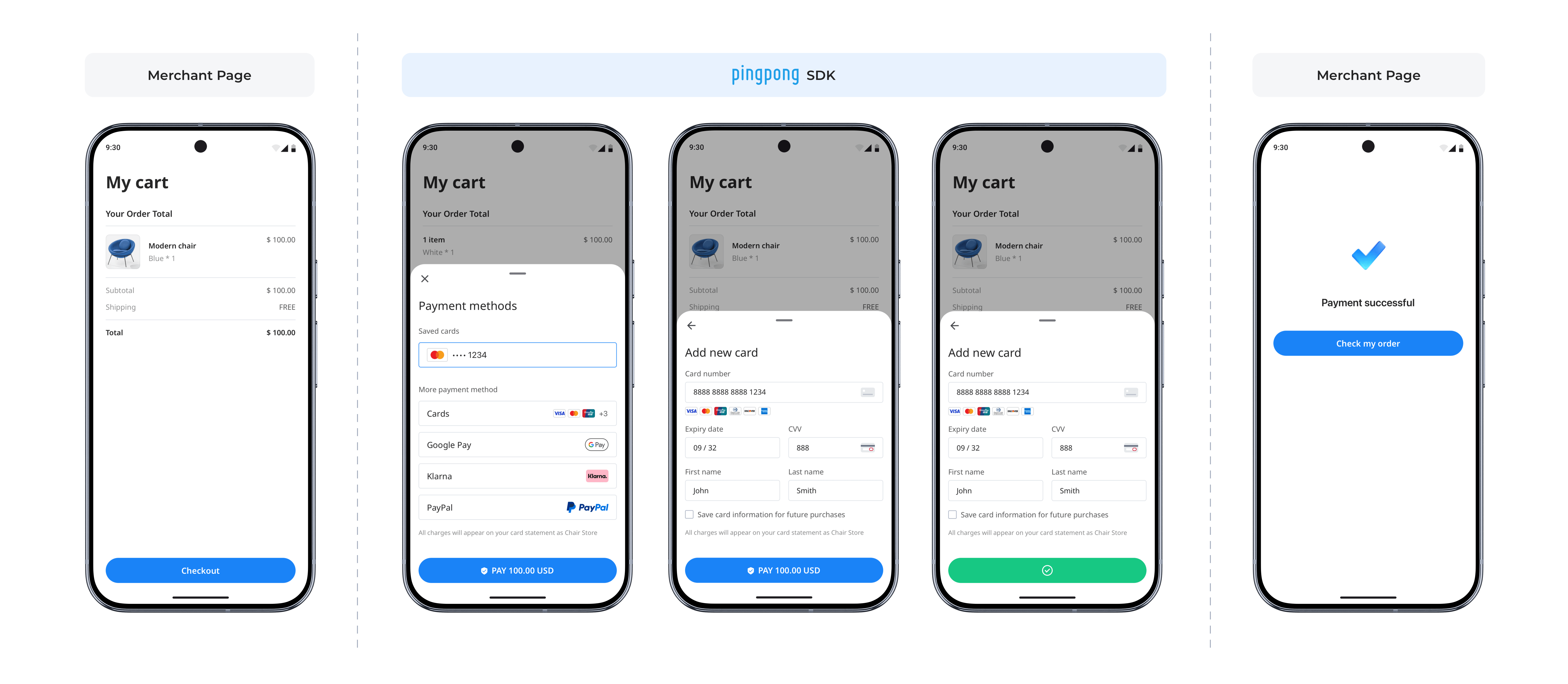
Native SDK for Android is designed for merchants that want to present PingPong Checkout as a bottom-sheet payment experience inside their own Android app. Your server creates the payment session through [prePay](/en/notes/checkout/api/reserve/), and the Android client uses the returned `token` to launch the checkout.
For Google Play submission, privacy declarations, and review guidance, refer to [App Submission & Compliance](/en/notes/integrate/app-compliance/overview/).
## Payment Experience
## Environment Requirements
| Item | Requirement |
|------|-------------|
| Android Gradle Plugin (AGP) | 8.13.2 |
| Java | 17 |
| Android SDK | compileSdk 36, targetSdk 36, minSdk 24 |
| OkHttp | 4.12.0 |
| Gson | 2.11.0 |
| Retrofit | 2.11.0 |
## Import Instructions
### Manual Integration
1. Download the Android SDK AAR file.
Please contact PingPong technical support to obtain the download URL.
2. Import dependency into Android Studio project.
Copy the aar file to the module's libs directory, add dependency in module's gradle file:
```groovy:line-numbers title="build.gradle"
dependencies {
implementation files('libs/payment-android-sdk-1.0.0.aar')
}
```
## Payment Flow
```mermaid
%%{init: {
'theme': 'base',
'themeVariables': {
'primaryColor': '#E3F2FD',
'primaryTextColor': '#0D47A1',
'primaryBorderColor': '#1976D2',
'lineColor': '#1565C0',
'secondaryColor': '#BBDEFB',
'tertiaryColor': '#90CAF9',
'background': '#F8FBFF',
'mainBkg': '#E3F2FD',
'secondBkg': '#BBDEFB',
'tertiaryBkg': '#90CAF9',
'actorBkg': '#2196F3',
'actorBorder': '#1976D2',
'actorTextColor': '#FFFFFF',
'actorLineColor': '#1565C0',
'signalColor': '#0D47A1',
'signalTextColor': '#0D47A1',
'noteBkgColor': '#E1F5FE',
'noteTextColor': '#01579B',
'noteBorderColor': '#0288D1',
'loopTextColor': '#0D47A1',
'activationBkgColor': '#B3E5FC',
'activationBorderColor': '#0277BD'
}
}}%%
sequenceDiagram
participant App as 💻 Merchant App
participant SDK as 📱 PingPong Native SDK
participant Server as 🏪 Merchant Server
participant PP as 🔄 PingPong Server
participant Bank as 🏦 Card Issuer/Payment Channel
Note over App, Bank: 🚀 Android Interaction Sequence
App->>+SDK: 1. Create PPPayment instance
SDK->>+PP: 2. Validate Token
PP-->>-SDK: 3. Return payment method list
SDK-->>-App: 4. Display bottom-sheet checkout
Note over App, Bank: 💳 Payment Process
alt ✅ User completes payment
App->>SDK: 5. User selects payment method
SDK->>+PP: 6. Submit payment request
PP->>+Bank: 7. Route to bank/payment channel for processing
Bank-->>-PP: 8. Return processing result
PP-->>-SDK: 9. Return payment information
SDK-->>App: 10. Callback completed/failure
App->>+Server: 11. Long polling query for payment result
Server-->>-App: 12. Return final payment status
else ❌ User taps close button
App->>SDK: 13. Tap close
SDK-->>App: 14. Callback cancel
end
Note over App, Bank: 📡 Webhook Notification
Note over PP, Server: PingPong sends asynchronous notifications via webhook
Note over App, Bank: 🎯 Flow Ends
```
## SDK Configuration and Key Objects
### Key Objects Description
| Class Name | Description |
|------------|-------------|
| PPPayment | SDK main entry class |
| PaymentConfig | SDK configuration class |
| PaymentResult | Payment result callback (Sealed Class) |
| Environment | Environment enumeration (SANDBOX/ONLINE/ONLINE_US) |
### Environment Configuration
**Environment Enumeration**:
```kotlin:line-numbers title="Environment.kt"
enum class Environment {
SANDBOX, // Sandbox environment
ONLINE, // Production environment - Europe
ONLINE_US // Production environment - US
}
```
| Enumeration Value | Description | API Endpoint |
|-------------------|-------------|--------------|
| SANDBOX | Sandbox Environment | `https://sandbox-acquirer-payment.pingpongx.com` |
| ONLINE | Production Environment - Europe | `https://acquirer-payment.pingpongx.com` |
| ONLINE_US | Production Environment - US | `https://acquirer-payment-checkout-us.pingpongx.com` |
**Cross-Platform Mapping**:
| Android | iOS Equivalent | Description |
|---------|----------------|-------------|
| `SANDBOX` | `PPCDEnvironmentTypeSandBox` | Sandbox environment |
| `ONLINE` | `PPCDEnvironmentTypeRelease` | Production Europe |
| `ONLINE_US` | `PPCDEnvironmentTypeReleaseUS` | Production US |
**Configuration Example**:
```kotlin:line-numbers title="PaymentConfig Initialization"
val config = PaymentConfig(
environment = Environment.SANDBOX, // Sandbox
// environment = Environment.ONLINE, // Production Europe
// environment = Environment.ONLINE_US // Production US
logEnabled = true,
cardBinLength = true
)
```
## Key Integration Steps
### Step 1: Initialize SDK
```kotlin:line-numbers title="PaymentConfig.kt"
val config = PaymentConfig(
environment = Environment.SANDBOX, // Control environment switch
logEnabled = true, // Enable/disable SDK logging
cardBinLength = true // Set card BIN digit length
)
```
### Step 2: Launch Checkout
```kotlin:line-numbers title="PaymentActivity.kt"
// 1. Create payment instance
val payment = PPPayment(activity, PaymentResultCallback { result ->
when (result) {
is PaymentResult.Completed -> {
// Payment information submitted successfully. This does NOT indicate payment success.
// Verify final status via server-side confirmation.
}
is PaymentResult.Canceled -> {
// User canceled
}
is PaymentResult.Failed -> {
// Payment flow failed or was interrupted.
// Always verify final status via server-side confirmation.
}
}
})
// 2. Launch the checkout
payment.presentPayment(
token = "your_token",
config = config
)
```
## Post-Payment Actions
The following post-payment actions apply to Web / WAP, iOS, and Android integration modes. These actions should always be handled by your server. Frontend result pages and SDK callbacks are only for shopper-facing display and interaction feedback; they must not be treated as the final source of truth for order success. Final order status should always be confirmed through [Payment Notification](/en/notes/notify/status/notify/) or [Transaction Query](/en/notes/checkout/api/getOne/).
### Query Transaction
When the shopper returns from the result page, the app receives a payment-completed callback, the asynchronous notification is delayed or missing, or your system needs to run reconciliation or compensation tasks, call [Transaction Query](/en/notes/checkout/api/getOne/) to retrieve the latest transaction status.
When querying, prioritize the `merchantTransactionId` stored on your side or the `transactionId` returned by PingPong. A successful query request only means the query API call itself succeeded; it does not mean the payment succeeded. Your order status must still be determined by the `status` value in the query response.
### Refund
After a successful payment, if the shopper requests a refund, the merchant cancels a paid order, or you need to return part or all of the funds, call [Refund Request](/en/notes/checkout/api/modifications/refund/) against the original transaction.
Refund results can be received through [Refund Notification](/en/notes/notify/refundNotify/). If the notification is delayed, not received, or you need to confirm the result again, call [Refund Query](/en/notes/checkout/api/getRefund/).
Refund capabilities vary by payment method. Before going live, confirm whether the target payment method supports refunds, the refund validity period, partial refunds, and multiple partial refunds. For a more complete refund guide, refer to [Refund](/en/notes/onlinePayment/modify/Refund/).
### Reconciliation
To understand statement generation rules and settlement cycles, refer to [Settlement Cycle and Statement](/en/notes/reconciliation/settlementCycle/). To enable statement download, see [How to Download Statement Files via SFTP](/en/notes/reconciliation/transactionStatementDownload/).